
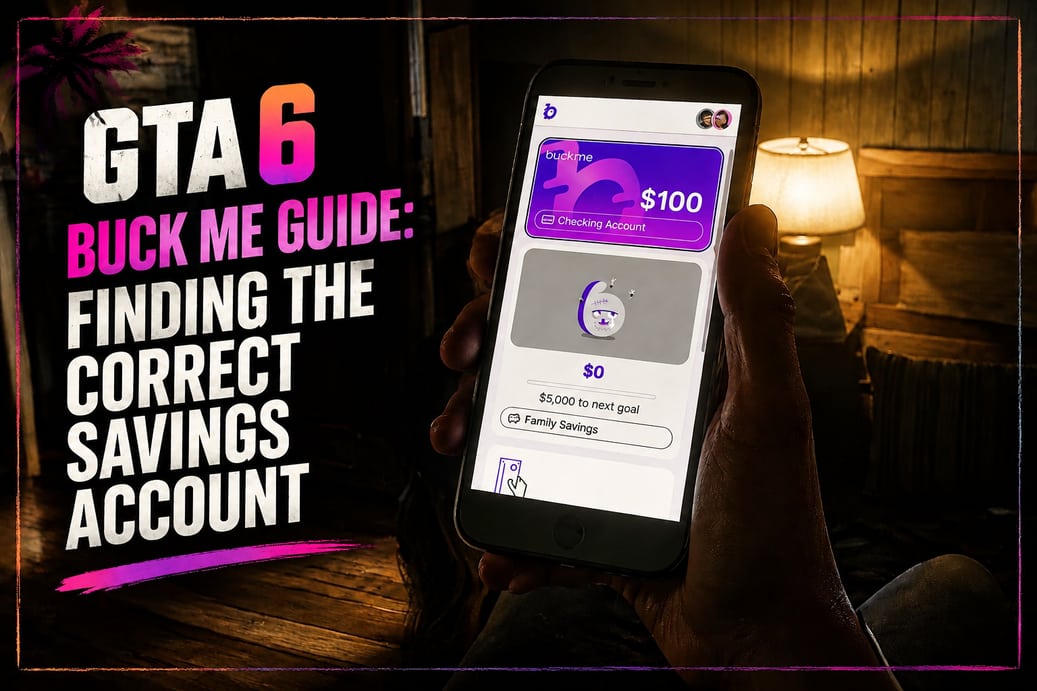
In GTA 6, the key step in the Buck Me mission is not simply opening a bank account. Jason must transfer the $100 welcome credit from his Checking Account to the correct destination, Family Savings. Selecting the wrong account or leaving the money in Checking Account will prevent the transfer objective from being completed.
Start by following the Fleeca appointment, then open the BuckMe app on Jason’s phone and complete the transfer. Make sure you select Family Savings before confirming the transaction so the mission can register your progress correctly.
Open an Account at Fleeca in Key Lento
After the Coming Home mission, wait for Lucia to contact Jason about setting up a bank account. She needs an account for her community service payments, so meet her at the Fleeca branch in Key Lento.
Go inside and speak to the teller at the counter. The teller directs you to the bank manager, who is sitting at a table on the right side of the lobby. Talk to him and follow him into his office.
The bank does not approve the regular account application. Instead, the manager introduces BuckMe as an alternative. After the conversation and cutscene, Jason returns home with the BuckMe app available on his phone and a $100 welcome credit already placed in his checking balance.
You do not need to visit another bank or find an ATM to collect this initial $100. The money is already in the account that you need for the mission.
Open BuckMe and Locate the Correct Account
Bring up Jason’s phone and select the purple B icon to launch BuckMe.
The app displays two separate account options:
- Checking Account: Holds the $100 welcome credit and functions as the account for regular spending and transfers.
- Family Savings: The destination for the mission’s required $100 contribution.
The important detail is the exact account name. You need to send the money to Family Savings, not leave it in Checking Account or use the separate payment option.
Transfer $100 from Checking Account to Family Savings
Use this exact sequence:
- Open BuckMe on Jason’s phone.
- Select Checking Account.
- Choose Buck Yourself.
- Enter the transfer amount: $100.
- Check that the destination is Family Savings.
- Select Confirm when the warning appears.
The transfer direction is:
Checking Account → Family Savings
This is the central requirement of the mission. The $100 starts in Checking Account and must be moved into Family Savings. Do not reverse the direction or confuse the destination with another BuckMe option.
The app warns that money transferred into Family Savings cannot be withdrawn. Review the amount and destination before confirming. Once the transfer succeeds, BuckMe displays a completion message, and the Family Savings balance reflects the deposit.
Why You Should Check the Destination Before Confirming
Checking Account and Family Savings each play an important role in managing your in-game finances. Checking Account keeps money available for everyday payments and purchases, while Family Savings is designed to hold contributions toward the household savings goal. Understanding how these accounts work makes it easier to manage your funds and complete the Buck Me objectives smoothly.
Keep your expected spending money in Checking Account and use Family Savings for money you intend to set aside. Since deposits into Family Savings are permanent, planning your transfers carefully helps you maintain enough available cash for regular purchases while steadily building your household savings.
The opening tutorial only requires a $100 transfer. There is no need to complete the larger savings target at this stage. Simply move the welcome credit into the correctly named Family Savings account to finish the objective and continue the mission.
Once you understand this account system, managing later BuckMe objectives becomes much easier. You can organize your story progression, make better financial decisions, and manage your GTA 6 Money more effectively while keeping track of the actual account transfers required by the game.
Complete the Transfer and Continue the Mission
After confirming the $100 transfer, check the BuckMe screen for the completion message and verify that Family Savings received the money. If the objective has not updated, reopen the app and inspect the account balances rather than repeating the Fleeca visit.
The important sequence is straightforward: speak to the teller, meet the manager, return home, open BuckMe, and transfer the $100 from Checking Account to Family Savings.
Once the first deposit is complete, BuckMe becomes available for continued use, giving you a convenient way to manage future savings contributions. Keep Checking Account and Family Savings clearly distinguished when making additional transfers, so you can build your savings while retaining enough money for purchases and other story activities. For broader progression planning, GTA 6 Online Accounts offer another way to explore account options, while completing the correct initial deposit ensures you unlock BuckMe and make steady progress through this mission.